






Step 1: Sign in with your GOV.UK One login or create a new account, you will need:
- an email address
- phone number or authenticator app
- a government issued photo ID (this would be a drivers license or a passport)
-
an android or iphone mobile phone
.png?width=526&height=433&name=image%20(17).png)
Step 2: Enter your email address to create/sign in to your account.
*If the website does not recognise your email address - “Create a new Gov.uk One Login”
They will then send you a 6 digit security code to your email address, enter the 6 digit code.
.png?width=524&height=422&name=image%20(18).png)
Step 3: Provide the 6 digit code sent to your chosen phone number or authenticator app.
.png?width=581&height=327&name=Knowledge%20Base%20Access%20to%20Work%20Portal%20Login%20Changes%20(phone%20XXX).png)
Step 4: Answer the question prompt that comes up confirming your location.
Click on UK, Channel Island or ISle of Man if you are in UK.
.png?width=578&height=276&name=image%20(22).png)
Step 5: Confirm by clicking “Yes” if you have any of the three government issued photo IDs you have from the list.
Tip: It is easier to process if you select Driving Licence if you have one, or if not select Passport.
.png?width=376&height=692&name=image%20(23).png)
Step 6: Confirm which device you are currently on, if you are on a computer or tablet, please have your mobile device ready.
.png?width=481&height=299&name=image%20(24).png)
Step 7: Confirm which mobile device you have.
.png?width=496&height=412&name=image%20(27).png)
Step 8: At this stage you need to make sure you have:
- Confirmed your email address
- Logged in
- Confirmed which devices you’re using
If you have completed the above, please continue to scan the GOV.UK One app with the QR Code to open the app and follow the instructions to take a photograph of your Photo ID for confirmation and they will ask you to scan your face, place your face in the middle of the circle and wait for it to complete. Once done, go back to this web page and continue.
.png?width=513&height=332&name=image%20(28).png)
At this stage you will need to scan the QR code and open the app on your smartphone:
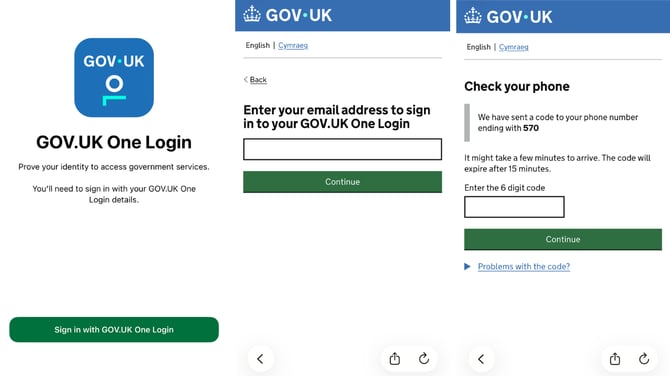
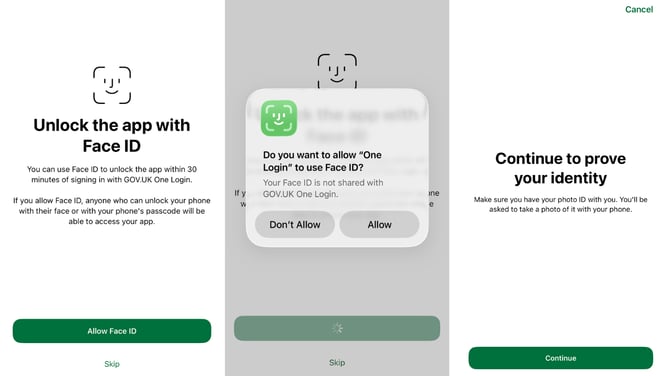
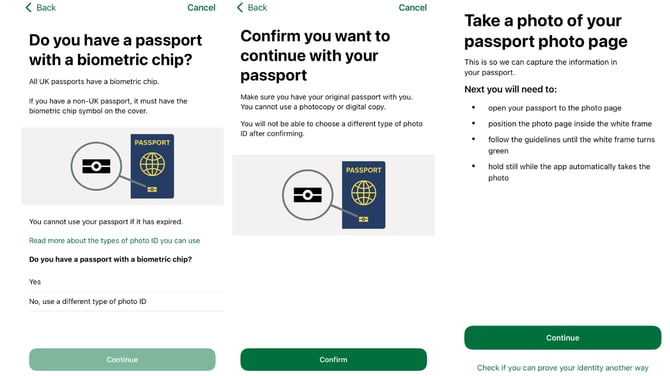
They will ask you for Driving Licence (same process)
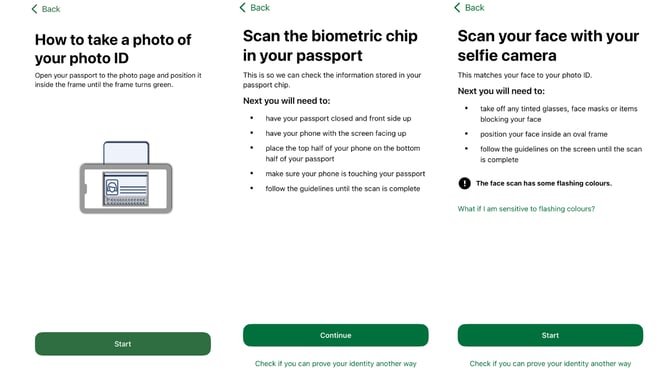
When you reach this stage, you need to return to the website on your computer or tablet.
Step 9: Once complete click the green button “Continue”
.png?width=390&height=389&name=image%20(29).png)
Step 10: Click the green button “Continue”
.png?width=510&height=213&name=image%20(30).png)
If you need any support, our team is here for you. You can reach our Consumer support team via email at hello-uk@convo.io
Alternatively, reach out to our team via our website, where you can send us a video message in BSL or open a live chat with the Consumer Support Team.
You can also connect with us in BSL by selecting ‘Convo Consumer Support’ in the Community Directory within the Convo Now app.
At Convo, we’re always here to help.