






Before returning your iPhone or iPad, please follow the steps below to ensure your personal data is safely removed and the device is no longer linked to your Apple ID.
1. Sign Out of Your Apple ID
-
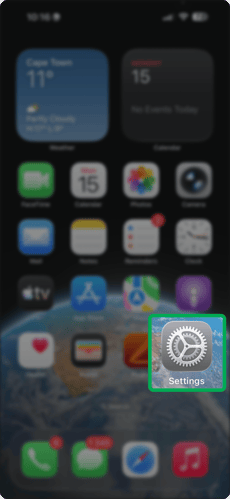
Open Settings.
-
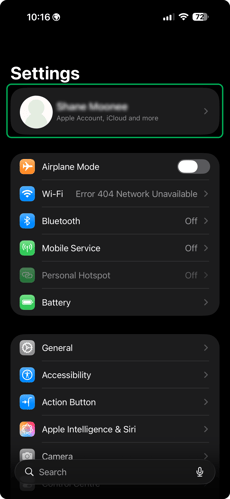
Tap your name / Apple ID at the top.
-
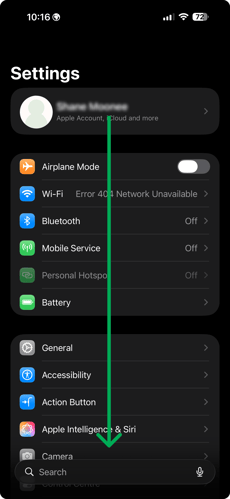
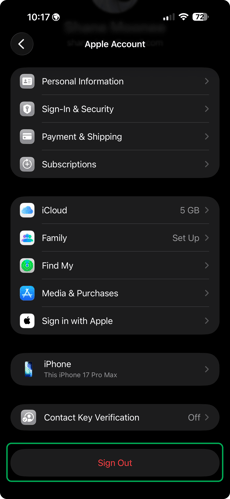
Scroll down and tap Sign Out.
-
Enter your Apple ID password to turn off Find My iPhone/iPad.
-
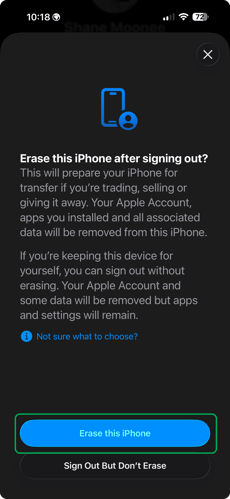
When prompted, choose what data to keep on the device (it’s safe to select Sign Out without keeping data).
-
Confirm Sign Out.
2. Remove the Device From Your Apple ID Account (Important)
If you have another Apple device or can access your Apple ID online:
Option A — Using a web browser
-
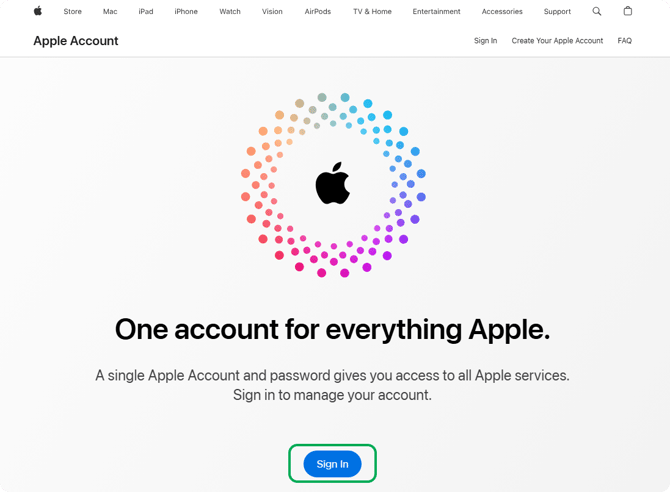
Visit https://appleid.apple.com and sign in.
-
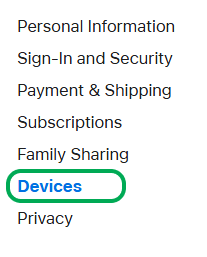
Scroll down to Devices.
-
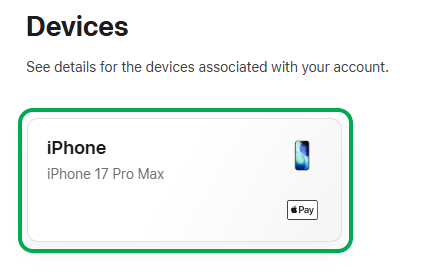
Select the device you are returning.
-
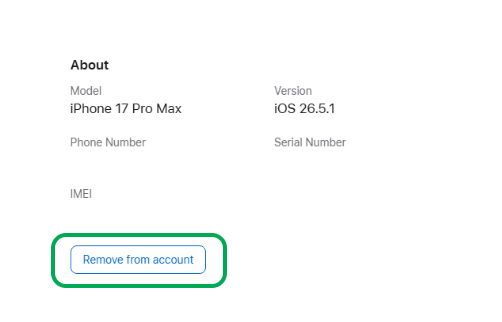
Click Remove from account.
- Confirm.
Option B — Using another Apple device
-
On your iPhone, iPad, or Mac, open Settings / System Settings.
-
Tap your Apple ID name.
-
In the list of devices, select the one you’re returning.
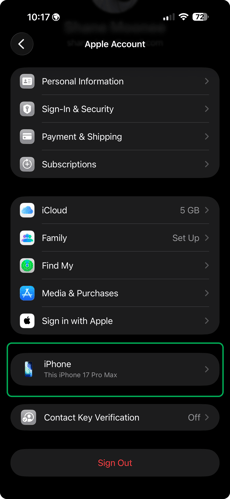
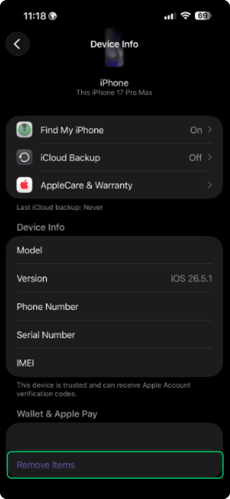
- Tap Remove from account.
3. Erase All Content and Settings
Once signed out of Apple ID:
-
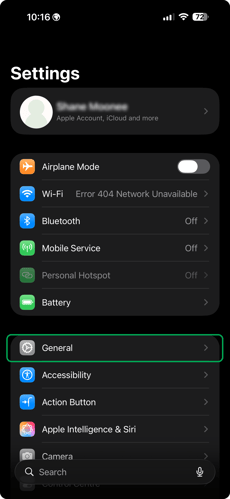
Open Settings.
-
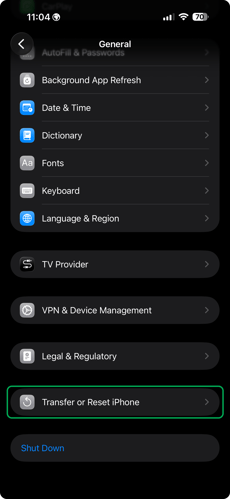
Go to General > Transfer or Reset iPhone/iPad.
-
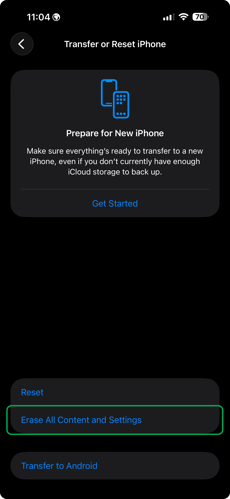
Tap Erase All Content and Settings.
-
Enter your device passcode if prompted.
-
Confirm the erase.
This will wipe all personal data and restore the device to factory settings.
4. Remove SIM Card (if applicable)
If the device uses a physical SIM card:
-
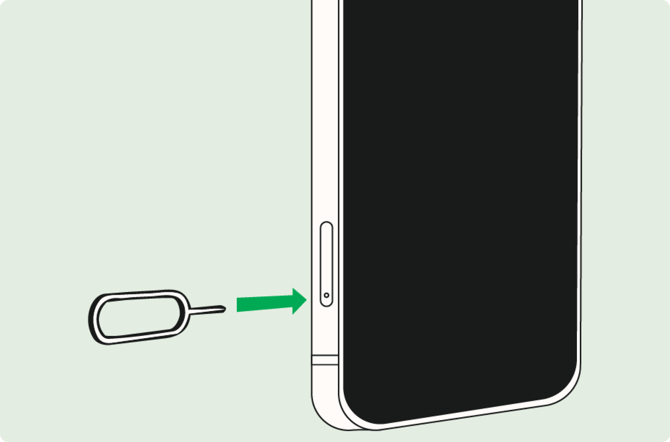
Use a SIM ejector tool or paperclip to open the SIM tray.
-
Remove your personal SIM card before returning the device.