






Chrome
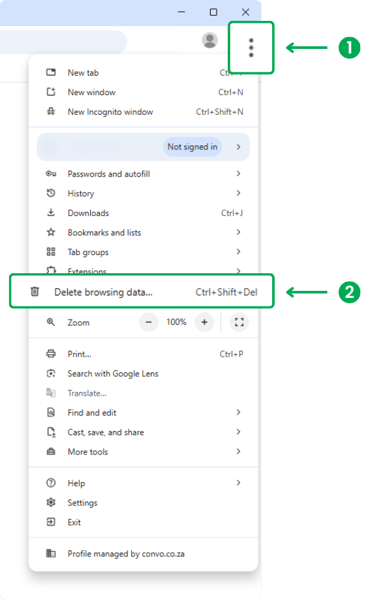
- Open Chrome (Mac/ Windows) and click the 3 dots in the top-right corner of the browser.
- Select Delete browsing data.
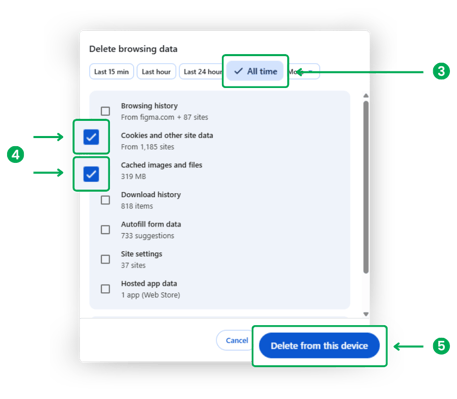
3. The Delete browsing data pop-up appears and selects time range, All time.
4. Mark the options: Cookies, and Cached images and files.
5. Click on the Delete from the device button.
Keyboard shortcuts to open “Delete Browsing data” page.
- Windows: Ctrl + Shift + Delete
- Mac: Command + Shift + Delete
Edge Browser
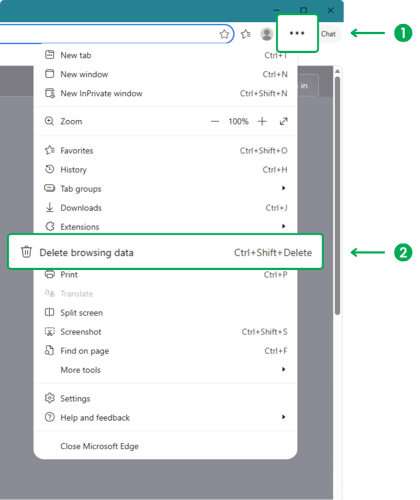
- Open Edge Browser (Mac/Windows) and click the 3 dots in the top-right corner of the browser.
- Select Delete browsing data.
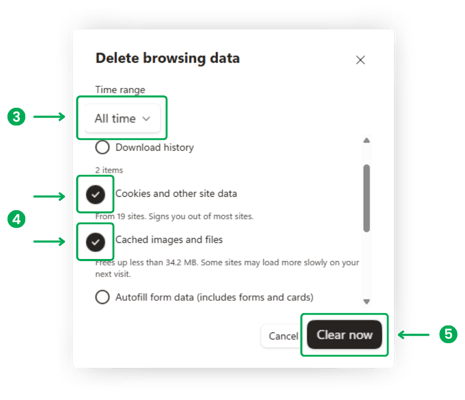
3. The Delete browsing data pop-up appears and selects time range, All time.
4. Mark the options: Cookies and other site data, and Cached images and files.
5. Click on the Clear now button.
Firefox
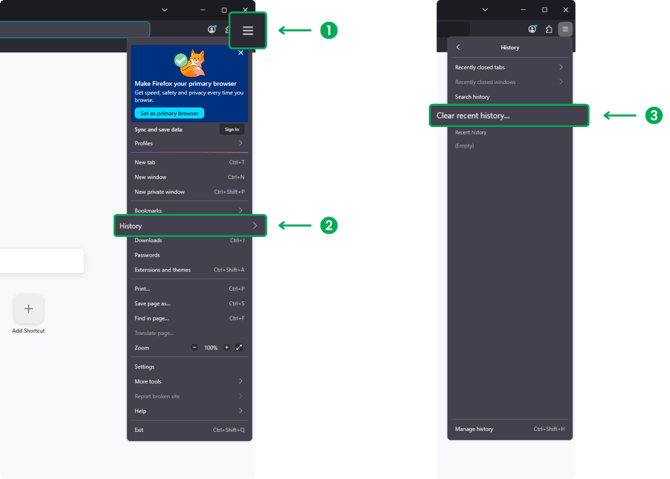
- Open Firefox (Mac/ Windows) and click the 3 lines in the top-right corner of the browser.
- Select History.
- Then select Clear recent history…
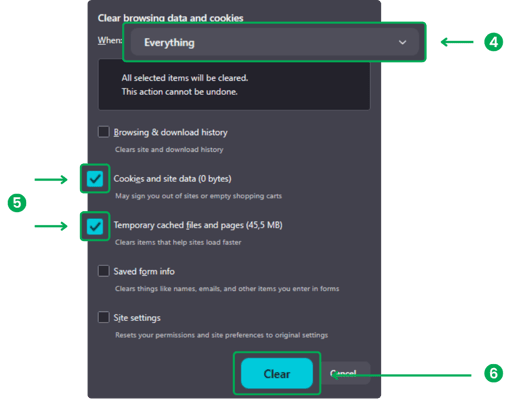
4. The Clear browsing data and cookies pop-up appears and selects when range, Everything.
5. Mark the options: Cookies and the site data, and Temporary cached files and pages.
6. Click on the Clear button.
Safari
Steps to Clear Browsing Data in Safari
Method 1: Clear History + Cookies + Cache
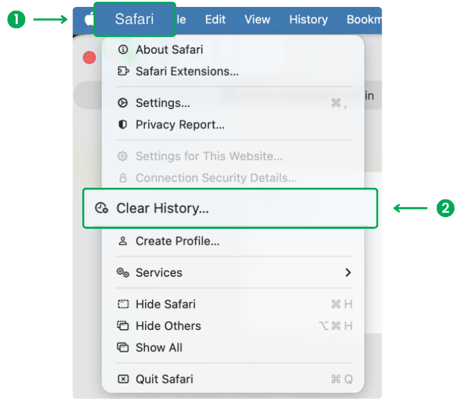
- Open Safari (Mac) and click Safari in the top menu bar.
- Select Clear History…
3. In the pop-up, choose All History.
4. Click the Clear History button.

Method 2: Clear Only Cookies & Cache (More Control)
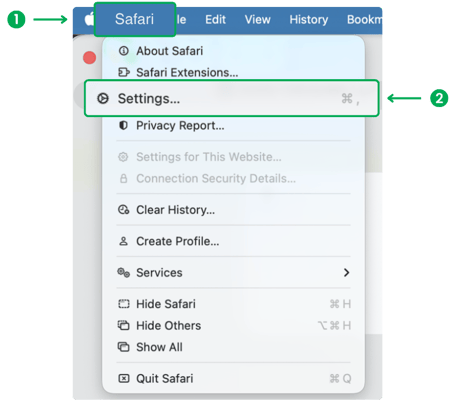
- Open Safari (Mac) and click Safari in the top menu bar.
- Click Settings (or Preferences).
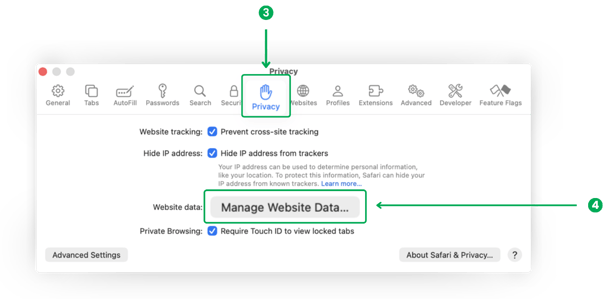
3. Go to the Privacy tab
4. Click Manage Website Data…
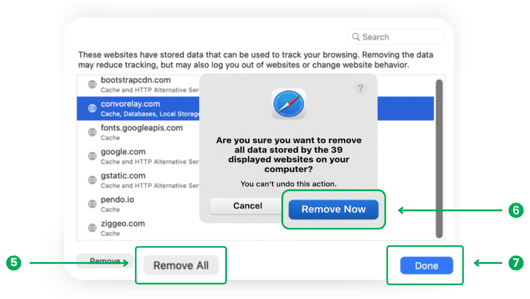
5. Click the Remove All button.
6. Confirm by clicking the Remove Now button.
7. The stored data will be empty on the websites list. Click the Done button.
Reference: Clear cookies in Safari on Mac