






Improve audio clarity in interpreted conversations
Is the interpreter having trouble hearing the hearing person? Or are you having trouble hearing the interpreter? This can happen in noisy environments or when your phone’s audio isn’t ideal.
That’s where Connect Audio comes in. This feature allows the hearing person to use their own phone for audio — making the conversation clearer and more effective for everyone.
How it works
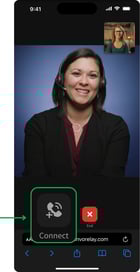
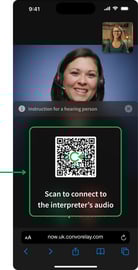
- On the Deaf person’s mobile device, tap Connect after the interpreter appears. A QR code will appear.
- Ask the hearing person to scan the QR code using their own mobile device.
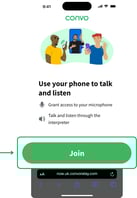
- On the hearing person’s device, tap Join.
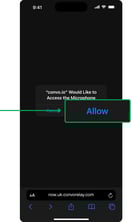
- Tap again to give Convo permission to use the phone’s microphone and speaker.
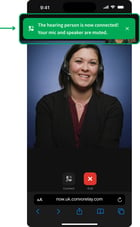
- Once connected, the hearing person will hear the interpreter through their own phone, improving audio clarity for both sides.
FAQs
Q: Is there an extra charge to use Connect Audio?
A: No. Connect Audio is included in your Convo Access / Convo Now plan.
Q: Does the hearing person need to create an account or download an app?
A: No. They simply scan the QR code and allow access to their phone’s microphone and speaker.
Q: Will Connect Audio fix all audio issues?
A: Not all — but it significantly improves audio in situations like:
- Noisy environments
- Weak or blocked phone speakers
- Phones placed on surfaces that muffle sound
- Bluetooth or audio routing issues
Q: Can Connect Audio be used before an interpreter joins?
A: No. Connect Audio becomes available only after the interpreter has joined the session.