






Access to Work (AtW) is a government programme that provides support to help remove barriers at work. If you already have an Access to Work grant, you may need to submit a claim to receive payment for support you have used, such as support workers or services. If you are making a claim for the first time, the process can feel unclear. This guide explains the steps involved in submitting a claim, what information you may need, and what happens after you send your claim.
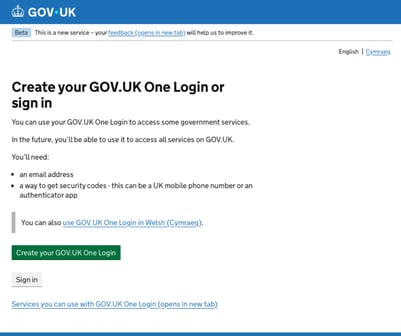
Step 1: Sign in with your GOV.UK One login or create a new account, you will need:
- an email address
- phone number or authenticator app
- a government issued photo ID (this would be a drivers license or a passport)
- an android or iphone mobile phone
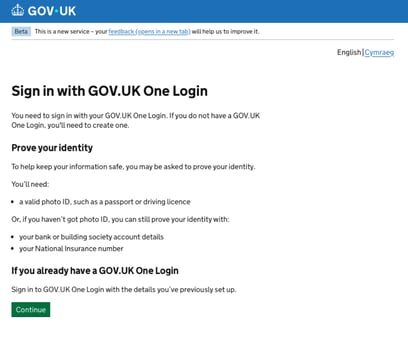
Step 2: Enter your email address to create/sign in to your account.
*If the website does not recognise your email address - “Create a new Gov.uk One Login”
They will then send you a 6 digit security code to your email address, enter the 6 digit code.
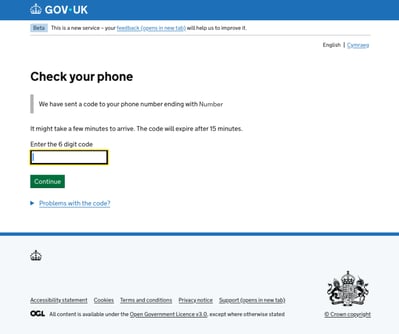
Step 3: Provide the 6 digit code sent to your chosen phone number or authenticator app.
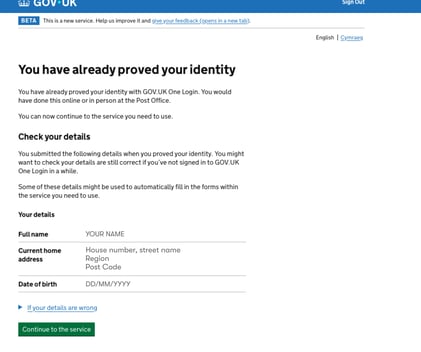
Step 4: If you have previously verified your identity, the system will show your personal details.
Check that the information is correct and up to date.
- If anything is wrong, select “Update details.”
- If everything is correct, select “Continue to the service.”
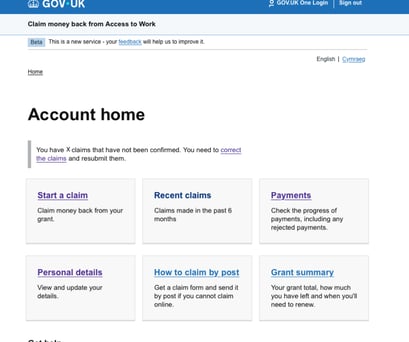
Step 5: You will be taken to your Access to Work account home page.
This page shows information related to your claims, including:
- Start a claim
- Your recent claims
- Payments and payment progress
- Your personal details
- Information about claiming by post
- A summary of your Access to Work grant
To begin your application, select: “Start a claim.”
Step 6: Select the type of support you are claiming for
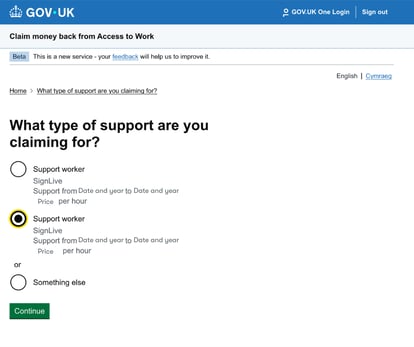
You will now be asked what type of support you want to claim through Access to Work.
Select the option that best matches the support you need.
Examples might include:
- Support with workplace adjustments
- Specialist equipment
- Travel support
- Support workers
Once you select the relevant option, the application will guide you through the next questions.
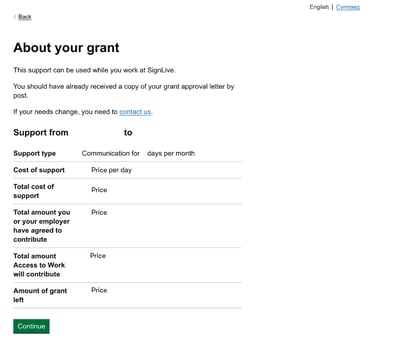
Step 7: The details about your grant will then be presented to you, check through the details to make sure everything is correct.
Once you have confirmed all the details are correct, select “continue”.
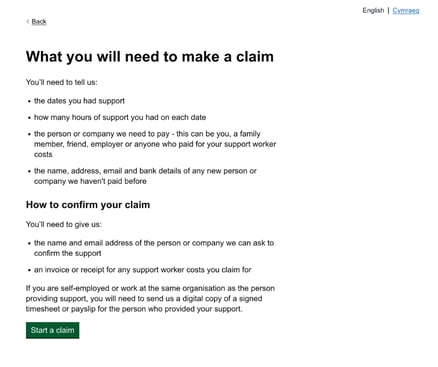
Step 8: Prepare your evidence
Before starting a claim, you will need to gather the following information:
- The dates you received support
- The number of hours of support you had on each date
- The name of the person or company Access to Work needs to pay
- Any documents or evidence related to the payment (for example, an invoice or receipt)
Once you have this information ready, select “Start a Claim.”
Step 9: Enter the support worker or agency name
Enter the name of the support worker or organisation who provided the support.
For example: SignLive
Then select “Continue.”
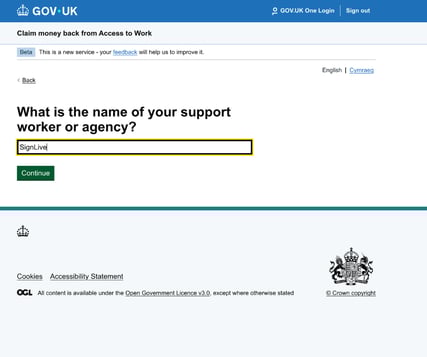
Step 10: Select the month you are claiming for
Choose the month you are claiming support worker costs for.
Make sure you also select the correct year.
Then select “Continue.”
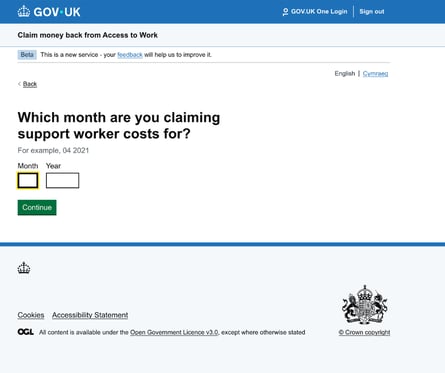
Step 11: Select the dates you received support
You will now see a list of all the days in the month you selected.
Select each date when you received support.
Make sure you choose all relevant dates, then select “Continue.”
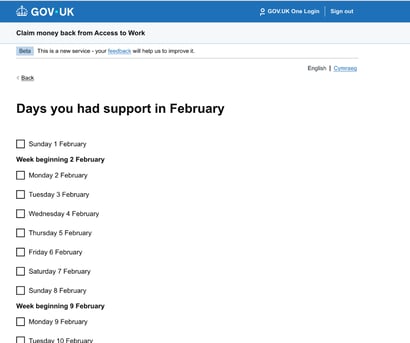
Step 12: Enter the hours of support
For each date you selected, enter:
- The number of hours, and
- The number of minutes of support you received
Once you have entered this information, select “Continue.”
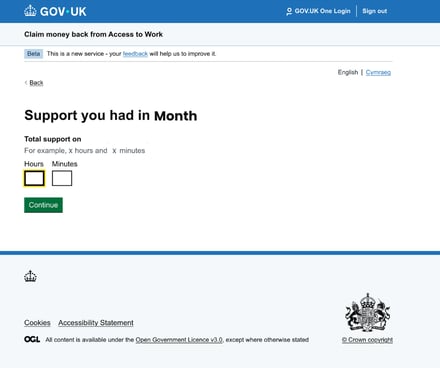
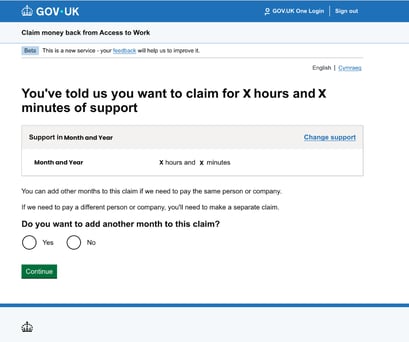
Step 13: Add another month (if needed)
Access to Work will show a summary of the information you entered.
You will then be asked if you want to add another month to your claim.
- Select “Yes” if you want to claim for another month
- Select “No” if this claim is only for one month
Then select “Continue.”
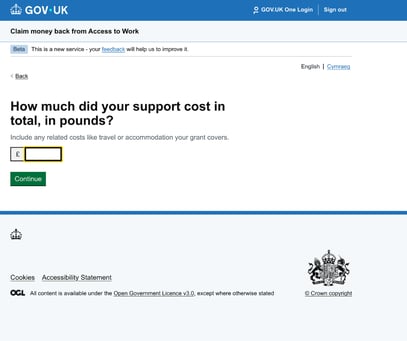
Step 14: Enter the support cost
Enter the total cost of the support in pounds (£).
Once you have entered the amount, select “Continue.”
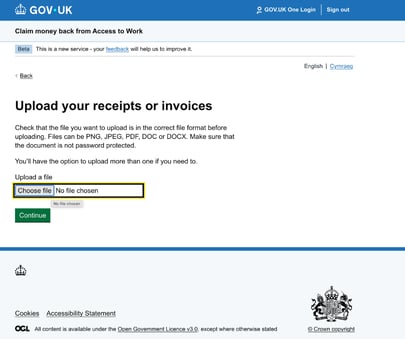
Step 15: Upload your evidence
You will now need to upload evidence for your claim.
This is usually:
- An invoice, or
- A receipt
Attach the relevant document and select “Continue.”
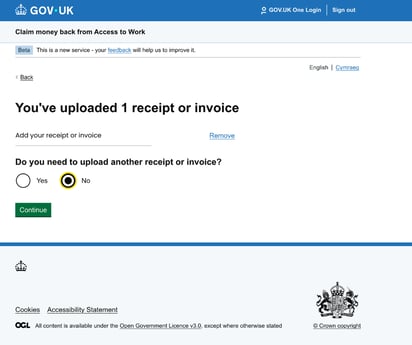
Step 16: Add another document (if needed)
You will be asked if you want to upload another invoice or receipt.
- Select “Yes” if you need to add another document
- Select “No” if you have finished uploading evidence
Then select “Continue.”
Step 17: Confirm who should be paid
Enter the name of the person or company that should receive payment for the support.
For example: SignLive
Then select “Continue.”
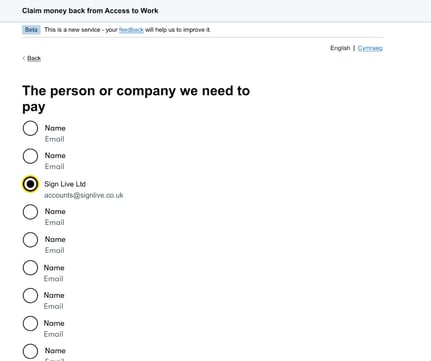
Step 18: Select the payment details
Choose the payment details linked to the support provider.
For example: SignLive Ltd
Once selected, choose “Continue.”
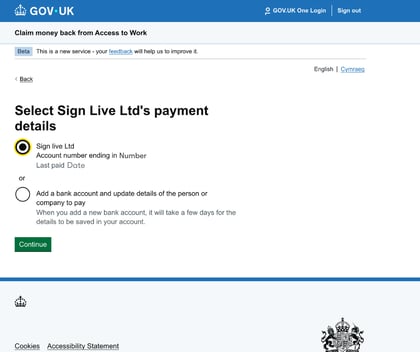
Step 19: Add a contact to confirm the support
Enter the details of a person or team who can confirm the support costs.
For example: Your Line Manager
Then select “Continue.”
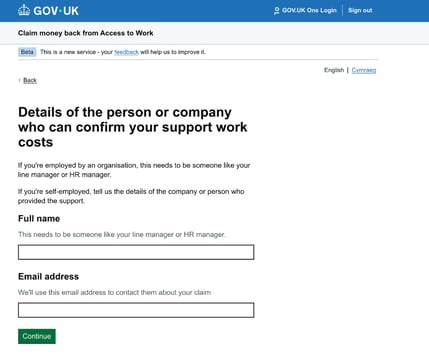
Step 20: Confirm your details
You will now be asked to confirm that the details you entered are correct.
Check the information carefully and select “Continue.”
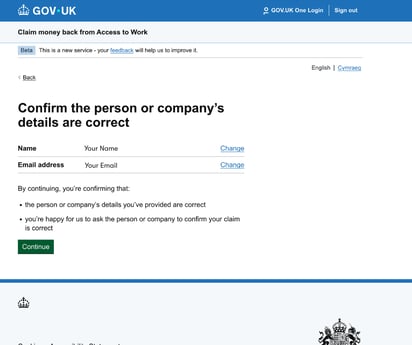
Step 21: Review your claim
You will now see a full summary of your claim.
Check each section to make sure the information is correct.
If everything looks right, select “Continue.”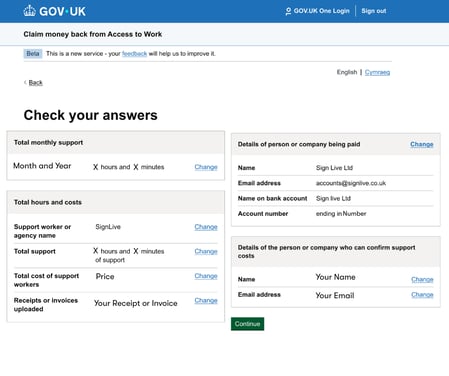
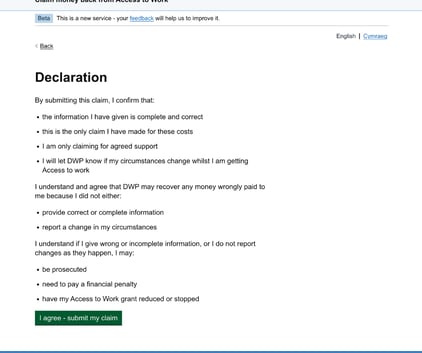
Step 22: Submit your claim
You will now see a declaration confirming that the information in your claim is correct.
Read the declaration carefully.
If you agree, select:
“I agree - submit my claim.”
Your claim will then be sent to Access to Work for processing.
What happens after you submit your claim?
After you submit your claim, it is sent to the Access to Work team to review.
Confirmation
You should see a confirmation message after submitting your claim.
You may also receive a confirmation email.
Track your claim
You can check the progress of your claim by signing in to your **GOV.UK One Login account.
From your account, you can:
- View recent claims
- Check payment progress
- Start a new claim
Need help with your claim?
Our Consumer Support Team can support you through the process.
Email hello-uk@convo.io or call us for assistance.